You Don't Need to be a Professional Geek or Social Media Diva to use Twitter
I started using Twitter in 2008. I know this because it says so on my Twitter profile. I don't actually remember starting Twitter, other than working out how to say everything in the space of 140 characters. Twitter is good for teaching writers to be less wordy, sometimes. Not every writer really learns this. I can't say I have been completely reformed.
People seem to care a lot about Twitter as a marketing campaign. They miss out on Twitter as a social media. Twitter as a way to follow not just other Twitter people but to get a general feed of all your personal interests as well. I use Twitter as a hobby. I don't make it a chore, or a work horse or a marketing tool. Twitter is still fun for me and I still like it, five years later.
Don't assume I am not also posting links to the content I create. I just do more than that. You can too!
The best way to be great on Twitter is: Don't think of Twitter as a Marketing Scheme
If you want Twitter followers just to get followers then spam away. But, you won't have people following you who actually read what you post. It will be bots, other spammers and people who signed up for Twitter and then abandoned their accounts. People - real people - don't want to read Twitter feeds which are full of links, regurgitated quotations, automated posts and other stuff and debris you wouldn't want to read yourself.
Of course you want to post your links to Twitter. Do that, but in moderation. Once is enough. Twice is still ok but if you post the same link a third time... it becomes a commercial and people are less likely to pay attention the next time you post a link. No one wants to watch the commercials. We want fresh, original and timely!
Also, keep your post short. Don't use all 140 characters. Leaving at least 40 or more will allow someone else to repost your link and add some comment of their own. The more space you can give them, the better. But, at the least, they need enough to repost the link without editing your original text or removing your Twitter @name.
Don't be a troll.
Join conversations, start conversations, ask questions, share information. This is how you show other human beings you really exist and are not just a marketing robot on autopilot.
Don't use a lot of scheduled posts. Be available when you post so you can catch feedback in the moment and interact with people rather than just adding to the clutter of posts.
On the other hand, don't get obsessed with it. You can't chain yourself to the computer and hope to stay awake and read everything from everyone. You're going to miss stuff. That's ok. Twitter is like a bird, it takes flight - here one minute and gone the next. Respond to tweets while you are there, don't drive yourself nuts trying to keep up with everything. That way is madness!
Don't send private messages.
It is extremely rare that anything sent as a private message (DM) on Twitter isn't just spam or an automatic message of some kind, which is just another form of spam. Most people no longer read anything not in the main Twitter feed.
Don't follow people just for the sake of Twitter stats.
This is really important and not everyone will understand. The best way to get followers on Twitter is to pick and choose who you follow. Do not follow everyone who follows you.
When someone follows you see who they are. Do they interest you? Would you like to read their next Twitter post? Are they active? Or, too active? Do they have conversation or just post links? Do they retweet (repost or pass on) links from other people on Twitter?
When you do choose to follow someone don't just click Follow and go on your way. Be smarter! Send them a note. Tell them who you are, how you found them, why you followed them, etc. Introduce yourself. This is how you get Twitter followers. People want interesting people to follow them but the way to get people interested is to be interesting and... interested in them.
Help for Twitter Beginners
It seems impossible to find anything about using Twitter for something other than marketing. However, the secret to using Twitter to get attention, promote and market yourself - is to stop being a marketer and start being a human being. Use Twitter like social media - be social!
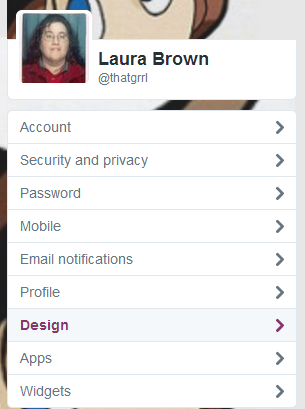
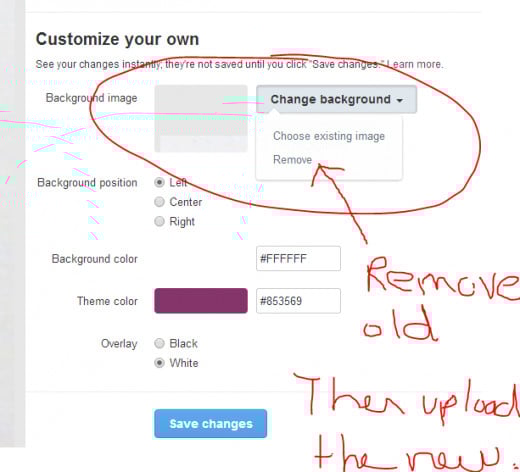
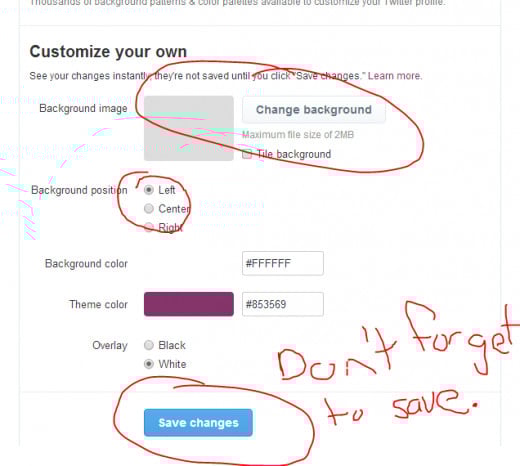
Add Life to your Twitter Profile with Images - You can add a Twitter avatar, background and header image with the newest updates on Twitter.
Do Not Use TrueTwit Validation or Other Automatic Services for Followers
TrueTwit is a service which will verify that someone who has followed you on Twitter is able to respond to an automated verification on the TrueTwit site. It's a form of spam. TrueTwit just wants to bring people to their site to view their ads, they make money that way. So, that's why the service exists.
Why have a bot check to see if someone who follows you is a bot? To me it just means you don't want to bother looking at my Twitter account to see if I'm someone you want to follow. So, why would I follow you? I ignore all posts from anything automated AND I often unfollow whoever sent anything automated.
When I find someone interesting enough that I choose to follow them on Twitter - I feel it is very arrogant for them to put me through an automated validation process OR to send me automated messages thanking me for following them and offering me their latest ebook, etc. Automated spam is never a good thing.
Why does it matter if the person following you is a bot? You can't remove them from your followers. Your option is to follow them back, or not. So, actually look at their account and decide if you want to, or not. Don't let a bot send them an automated message which will give most Twitter users the wrong kind of message about you.
It is social media, remember? Not hermit media, not robot media, not I-don't-care-who-you-are media. If you use TrueTwit you are causing people to unfollow you or ignore you, which is pretty much the same thing.
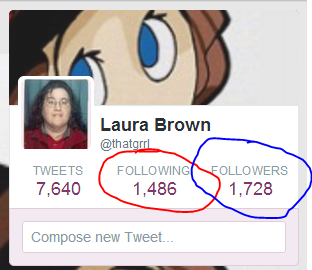
Unwritten Rule of Twitter Following - Someone decided that you should have more followers than people you are following.
 The Writer's Guide to Twitter by @inkyelbows - Just add the right #hashtag and join in on the scheduled day and time.
Twitter Chats For Writers Directory - via @inkyelbows
Writers' Guide To Twitter Chats. Tips, schedule, and resources for writers on Twitter.
The Writer's Guide to Twitter by @inkyelbows - Just add the right #hashtag and join in on the scheduled day and time.
Twitter Chats For Writers Directory - via @inkyelbows
Writers' Guide To Twitter Chats. Tips, schedule, and resources for writers on Twitter.
Writers Like Twitter
I've seen so many people use Twitter as a writing exercise. What story can you tell (start, middle and ending) with just 140 characters (spaces count)?