Posts in category “Creative Fat Grrl”
Posted on . Filed in . Tagged with , .

Halloween Style Gingerbread Men

My favourite thing about family holidays has always been the family getting together and baking. Most holidays we made pies, bread/ rolls and the odd new-fangled concept which seemed to always work out, some how. Those days are a bit lost now as we move from the old generation into the new. But, I still like holiday baking and Halloween is one of my favourite three holidays.

I like these gingerbread men because they bring something new to an old Christmas tradition and something new to Halloween. Halloween gingerbread men are a good combination. Plus, tasty treats too.

Of course, most of these are based on the zombie idea. It's so trendy these days with zombie walks popping up in so many places. Gingerbread men (gingerbread people) in the zombie style tend to come with parts missing, gore and so on. Of course, you could just eat the odd leg - but that's a bit too much like double dipping. Frowned upon.

Then there's the skeleton gingerbread guy. Will you pick out the bones first or risk just crunching them between your teeth, in real gruesome Halloween style?

Why not continue on with all the standard Halloween characters in gingerbread, the ghost, the witch, the vampire, the Frankenstein monster and the mummy too. You can get tin, some snips and create your own cookie cutter designs. If you really want to go all out with the idea of gingerbread characters for Halloween.

Decorating the gingerbread men would be a bit challenging. I wouldn't like to use a lot of black icing so I'd get creative and turn them into colourful characters. Bring in more green and orange, black isn't the only traditional Halloween colour. Why should cookies be so darkly Gothic?

Pick a recipe for a basic or simple sugar cookie. These are the type which you can roll out, cut and decorate. Not every recipe will be roller friendly so if you try a new recipe read it all the way through first. Some may need refrigeration, some may be crispy and likely to break and snap once they are baked. Martha Stewart has a basic sugar cookie recipe, but if you have a family favourite stick with that!

Decorating cookies is a great way to make your best creative notions as edible creations. Use a simple cookie recipe, cut out the cookie shapes, decorate them, bake them and share them with family, friends and whoever wears the best costume.

Posted on . Filed in . Tagged with .

ASCII Art Hidden in Source Code

Now and then if you look at the source code (the HTML code) of websites you can find ASCII art. Its like a secret surprise for those who dig a little deeper. Have a look at - ASCII Art Signatures in the Wild.

You can add ASCII art to the source code for your own site or blog.

Choose the ASCII art you want to use. Make your own ASCII art or borrow art created by someone else. (Don’t forget to keep the artist credit/ initials with the work).

Open the source file in a text editor. Notepad (the software which comes with Windows) will work.

Pick the place you will add the ASCII art – make sure you don’t break the HTML code because that would mess up your site.

You need to add some simple HTML code before and after the ASCII art.

This code prevents your ASCII art from showing on the page – instead it is like a note you have left to yourself in the code. Only people looking at the actual HTML code can see what you place in this particular HTML code.

Then save the file and close it.

Welcome Mat.co shares the code for adding a “Welcome” to the HTML code of your site.

Posted on . Filed in . Tagged with .

How to Create ASCII Art (Text Pictures) with Your Keyboard

Whether you know it as ASCII art or didn’t know a proper name for all that text art made with standard keyboard characters, you can do it yourself. It really is much simpler than you may expect.

I’ve been creating ASCII line art since 1997. After a few years I left it behind, there were so few places I could still use it once email became HTML instead of plan text. Now ASCII art seems to be making a come back for cell phones and other new technological gadgets which can send simple graphics, in text.

Start with an idea of what you would like to create. Get an image in your mind and then draw a rough sketch, look for a clip art image online or any other way you can get a visible image in front of you. When you are starting and still learning it is important to keep the image clean and simple. Stick to something with only a few lines and not many round shapes. (Circles are one of the more complicated shapes to create and will take some practice.)

Once you have your image where you can see it, open a text editor. I still use the plain, old text editor that came with Linux. You can use Notepad in Windows, it is simple – you will already have a fixed width font ready to use. If you use a graphic editor or anything other than a basic text editor you will need to make sure the font is fixed width. This means all the characters (letters, numbers and symbols) are the same standard space apart from each other. From W to I they take up the same amount of space. Other fonts will give you a very different result and are harder to work with when it comes to displaying text art. (At the very least they will always lean to the far left).

I like to be set up with my text editor taking up about half the screen and my inspiration image/ picture on the other side (unless it’s a print image and then I prop it up in front of me on my desk).

The first thing I do is make some empty working space on the text editor. Just use the enter key to go down a few lines. Start working on a level that is comfortable for you to view – not too high or low on your screen.

No one can tell you exactly what characters to use. That is all up to your own judgement. Base your choices on what will fit/ suit the image you are creating from. Look at the direction the lines go and then find a keyboard character that will work. Take your time, change your mind a few times, try different numbers and letters as well as the basic shapes with / \ | > ( ) < and the small dots from punctuation characters ‘ . -

Use the space bar to move to a new spot you want to type in. You need to create the blank spaces in order for them to appear. This is a time when the mouse is second fiddle. The enter or carriage return will take you to a new line. Backspace erases anything you want to change. This may seem obvious but we have grown comfortable using the mouse – it does take getting used to just working with the keyboard.

`As you work notice how different characters set on different levels. Some are higher and some lower. Use this to your advantage. _ , – ‘ ``

When you want to make eyes there are a lot of options @ o 9 a e b q p d c g 6. Try them all. Each gives a different personality to the image. A combination of q p (for instance) can create eyes and a nose or snout.

Take a look at letters like Y T and W. Those will give you some basic shapes too. When you create smaller ASCII text pictures the shape of letters and numbers matter and can give you exactly what you need in a small space. Y makes a nice nose for a cat’s face.

For making a box I like to use .——. to join it to the sides at the top and then .____. to join it to the sides at the bottom.

For shading/ making a dark area # works well. Some people get more complicated and create greyscale ASCII art. This takes some practice, some familiarity with the keyboard characters and how they combine to create a finished image. Don’t try something too complicated for your early work.

Experiment and learn as you work. Look at the ASCII art done by others and see how they used different letters, numbers and characters to create the shapes they wanted. Think of it as a puzzle, a jigsaw puzzle, where you are fitting the pieces together to create the complete image.

If you have a print image you can hold it up to your screen and match your text to the shapes by comparing how they fit under the paper it’s printed on. I never did this myself. It seems to take away some of the creativity and ingenuity for me. But, if that gives you the will to keep trying, go ahead and do it.

Leave a couple of lines above and below your finished ASCII text art. I also like to keep my work a few spaces over from the left hand side of the screen edge.

Once you are fairly happy with your creation save the text file on your computer. Give it a name and add it to your hard drive. If you have software to capture your file as a graphic image file you can do that too. I just use a screen capture that lets me pick the size I want to save instead of the whole screen. It is much easier to share and post text/ ASCII art in an image file.

Don’t forget to add your artist initials to your finished work. ASCII art is usually shared freely, often adapted by other artists (diddled as we used to call it in the ASCII art newsgroup) but the initials should be kept with the art as respect to the original creator of the art. Plus, when you find something you really like you have a chance to find more of it when you know who made it.
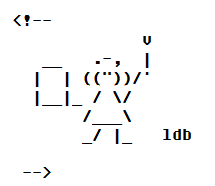
Posted on . Filed in . Tagged with , .

Have Coffee Maker Will Travel

I love my plug in percolator coffee maker because I can take it almost anywhere and I don't need anything extra (other than ground coffee beans, a mug and coffee cream) to have a cup of coffee. As long as I can plug in the electric percolator I can have coffee as I travel around or visit family.

My percolator pot is actually a Melitta JavaPerk pot. I found it at a second hand store, it had never even been used. Likely someone bought it but didn't understand how it worked or was nervous about the way it works, something like that I would guess.

A percolator pot is different from other pots. Each type of coffee maker brews the coffee in their own way. A drip pot runs heated water through the grounds to drip into a pot below. A French press (my other favourite coffee maker) steeps the boiled water in with the grounds and then the press comes down to push the grounds to the bottom and press the freshly brewed coffee to the top. The percolator heats the water and then uses force to shoot the water through the coffee grounds which are in a basket inside the machine. You can see the water shooting to the top of the machine because percolators usually have a see through tip on the lid. It's kind of fun to watch it while you wait for your coffee. The water that shoots up to the top becomes darker and darker as the coffee brews.

My percolator sits on a stand which has the electric pad (and plug) so they call it cordless. This means it does not need to sit on the stove to heat the water. This feature makes is great for travelling. I don't need to boil the water in a second cordless pot or find a stovetop to brew the coffee on. The percolator is the most all in one solution I have found yet. Plus, it's quick! I was surprised at how short the wait was once I set up the coffee maker and let it run.

If you travel and love your coffee, I suggest you pick up an electric percolator coffee maker. They are quite durable and you can keep all the parts inside the machine when you pack it up. Keep it clean though - old coffee never tastes good mixed with fresh brewed coffee.

Using the percolator coffee maker is easy. They generally work the same no matter which brand of pot you use. The main difference is whether your pot is an electric pot or needs to be on the stove to heat the water.

Posted on . Filed in . Tagged with .

Another Look at Formatting Code for Posting ASCII Art

I found a blog posting ASCII art in small text files, cleanly. Quite a nice achievement. I took a look at the code and copied it, but it did not work the same way for me. So, I am looking into it. There may be more to the code than shows on the blog post HTML code. Or, I will see if I can find a way to post a plain text file embedded in the post.